Getting started
Overview and deadlines
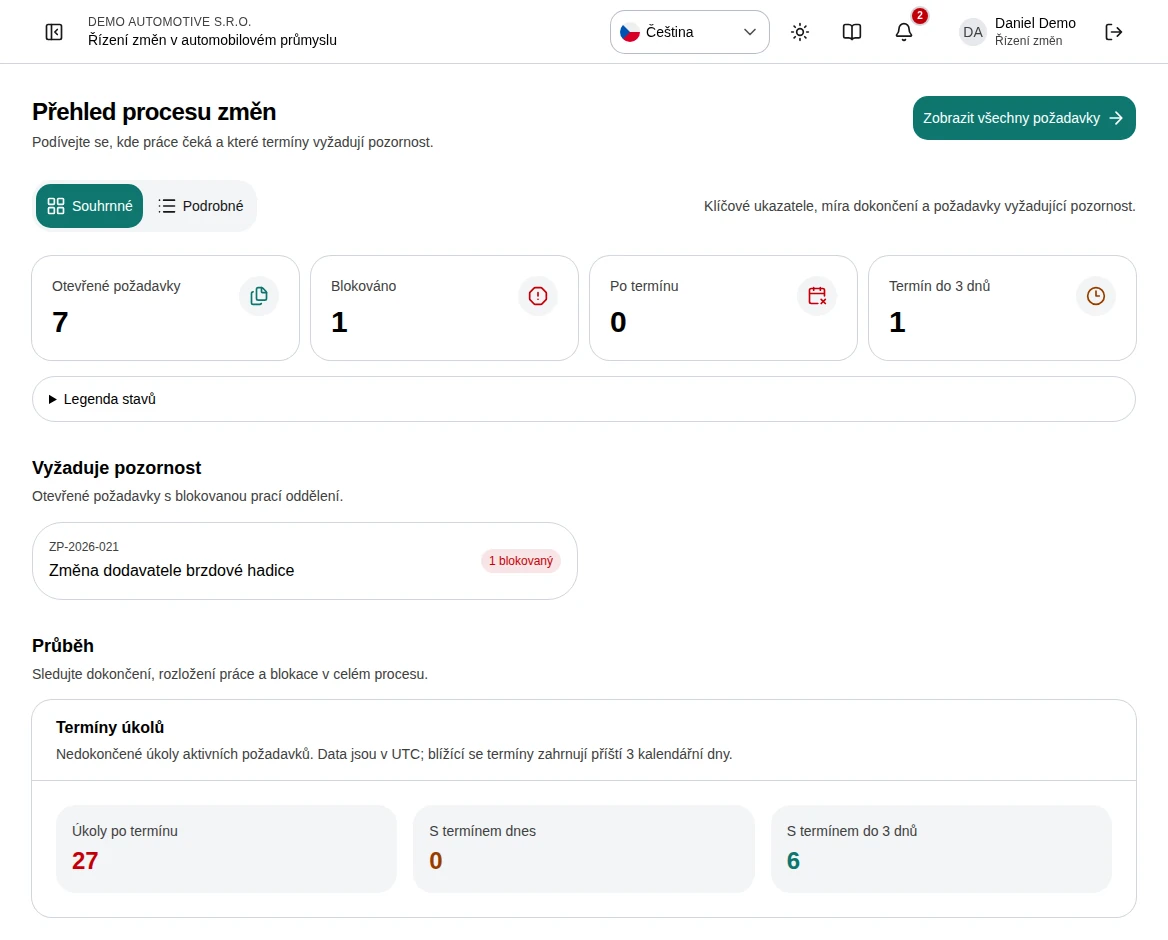
Read portfolio health, urgent work, and progress by department.
- Who can use it
- Users with read access.
- Where to find it
- Overview in the main navigation.
Step by step
Review the counts of open, blocked, overdue, and soon-due requests.
Open a request in Needs attention to investigate blocked tasks.
Switch between the high-level and detailed views. The detailed view exposes task rows and fuller progress breakdowns.
In Task deadlines, choose overdue, due today, the next three days, or all upcoming and overdue work.
Follow a task or request link to act on the item rather than only monitoring its summary.
 Enlarge screenshot
What to know
How to interpret the charts
Request completion counts released or closed requests. Task completion and department progress describe departmental work. A request stage and a task status are different concepts.
Deadline boundaries
The task deadline panel uses UTC calendar dates and unfinished tasks on active requests. The upcoming window covers the next three calendar days. Work without a deadline does not appear as a dated reminder.