Getting started
Troubleshooting and common questions
Resolve missing actions, blocked completion, failed saves, and unexpected visibility.
- Who can use it
- All users.
- Where to find it
- Use the relevant screen and its validation or error message.
Step by step
For missing requests, clear list filters and check whether the request is internal and your role can read it.
For a task that cannot finish, check predecessors, required responses, pending saves, department access, and request stage.
For missing create or edit controls, check role permissions. For a new request without templates, ask a SuperAdmin to publish a workflow.
For failed saving, correct highlighted fields and use Retry. Stay on the page until the saved state is confirmed.
For a missing approval form, check that the case is at Approval or Validation and that you are an authorized independent approver.
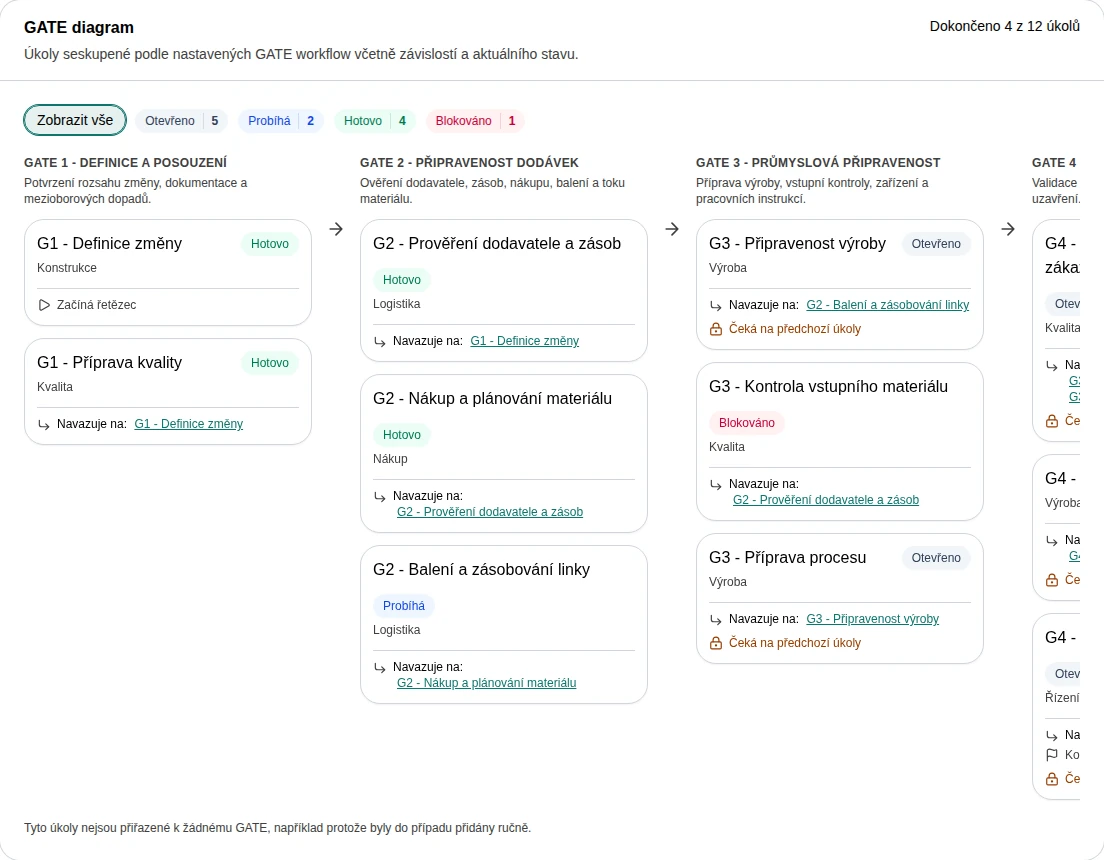 Enlarge screenshot
What to know
Why does my screen look different?
Role permissions, company settings, language, and application version affect the screen. Reference images are dated demo captures. The current request screen no longer uses the old Case record tab.
Why did a template update not change my case?
A request keeps its original workflow snapshot. Publish a new template version for future cases; existing cases are intentionally not rewritten.
Why is there no deadline reminder?
Check that the task has a due date and is unfinished on an active request. Check your notification preferences. Personal deadlines are private to the change owner.