Managing changes
Edit a request step by step
Edit an existing request, confirm automatic saving and check the result and audit history using a delivery date change as an example.
- Who can use it
- Permission to edit requests. Internal requests also require read and write access to internal content. Only a SuperAdmin can correct released, closed or rejected requests.
- Where to find it
- Change requests > open a request > Edit request.
Step by step
Find the request by title or number in the list and open its detail. Our example is “Změna balení dílu MCP-240”, a packaging change for MCP-240. Select Edit request in the header.
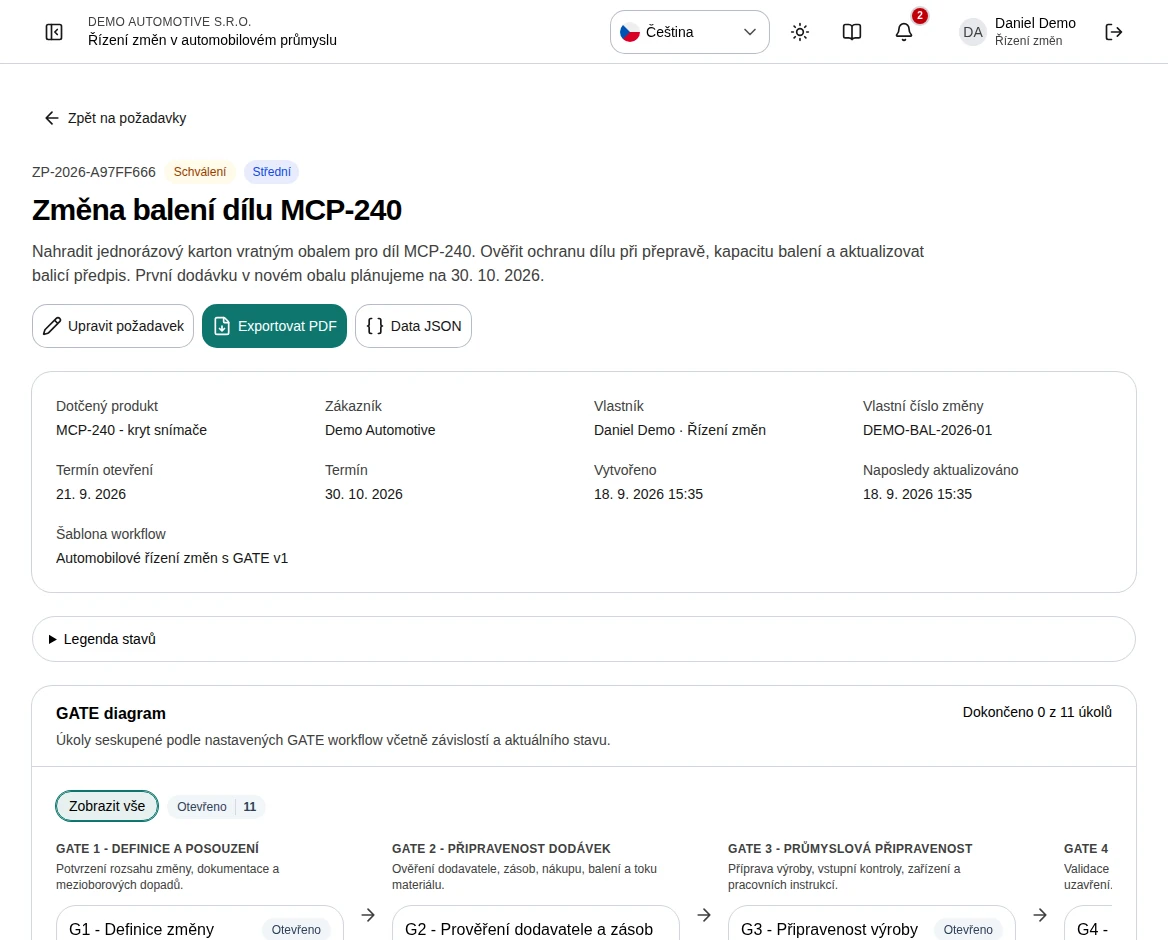 Enlarge screenshot
Open editing from the specific request header.Captured from a local synthetic demo in September 2026. All example data is fictional. Screenshots show the Czech interface. Change the required values in the prefilled form. In this example, move Target completion date from 30 October 2026 to 6 November 2026. You can also edit the title, product, customer, custom number, owner, change type, opening date or priority.
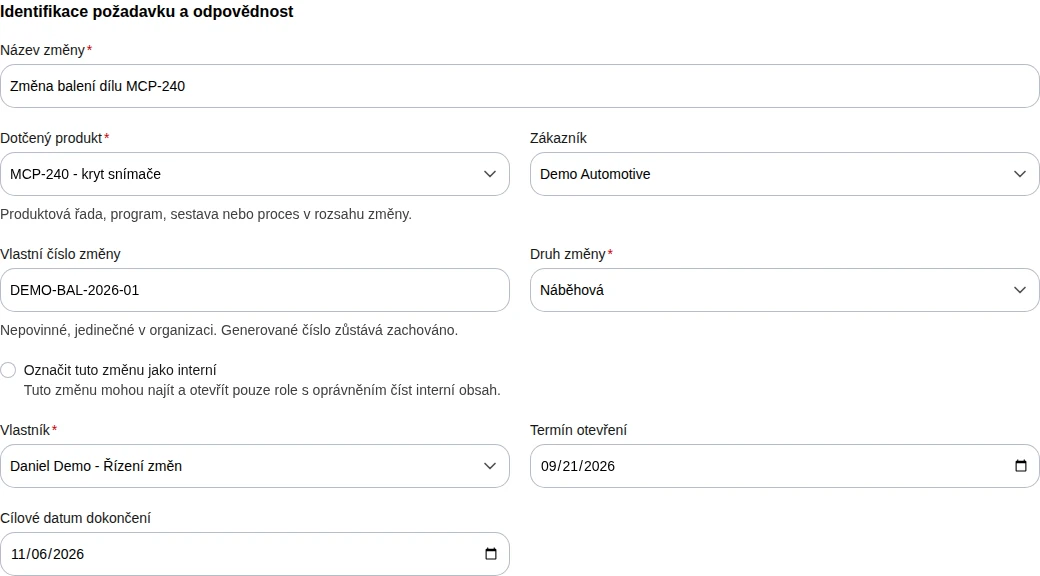 Enlarge screenshot
Change the target date while keeping the other identity fields filled.Captured from a local synthetic demo in September 2026. All example data is fictional. Screenshots show the Czech interface. Record the reason in Change description. Replace the original sentence about the first delivery with: “First delivery postponed to 6 November 2026 to complete the transport test.” Keep the packaging change description and required checks.
After editing, wait for “All changes saved” below the form, shown as “Všechny změny uloženy” in the screenshot. Valid changes save automatically after a short pause in typing; there is no separate Save button. Correct invalid values, or use Retry after a save error, then wait for confirmation.
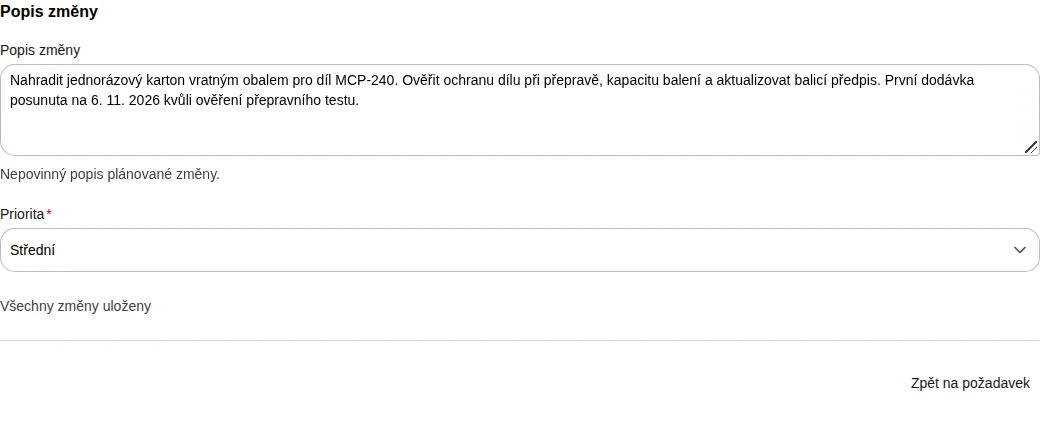 Enlarge screenshot
Check automatic save confirmation before leaving.Captured from a local synthetic demo in September 2026. All example data is fictional. Screenshots show the Czech interface. Select Back to request and verify the new target date, 6 November 2026, and updated description in the detail. If individual task dates also need to move, edit those tasks separately; changing the target date does not move them.
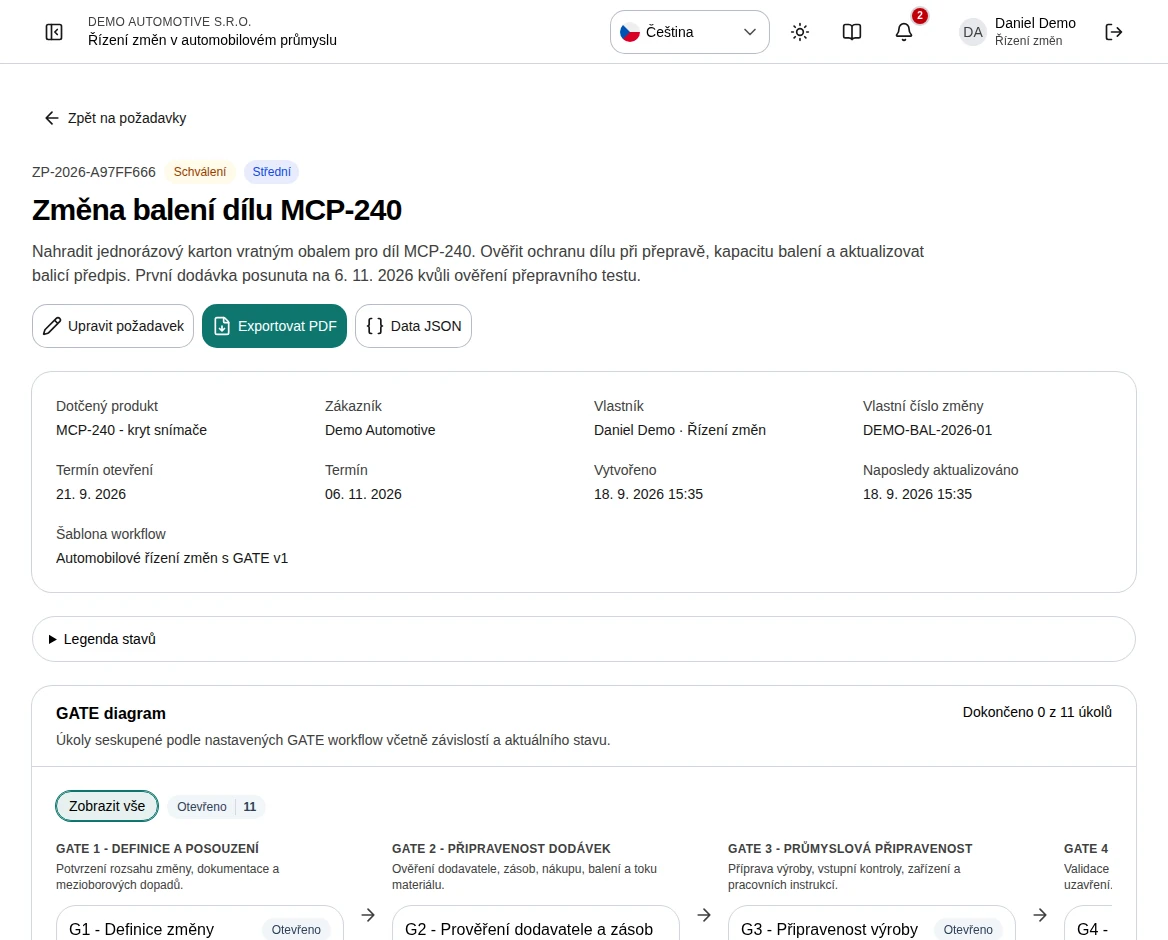 Enlarge screenshot
After returning, verify the detail shows the new values.Captured from a local synthetic demo in September 2026. All example data is fictional. Screenshots show the Czech interface. Go to Audit history near the bottom of the detail and check the update and its author. Automatic saving can create several entries when you edit fields one after another.
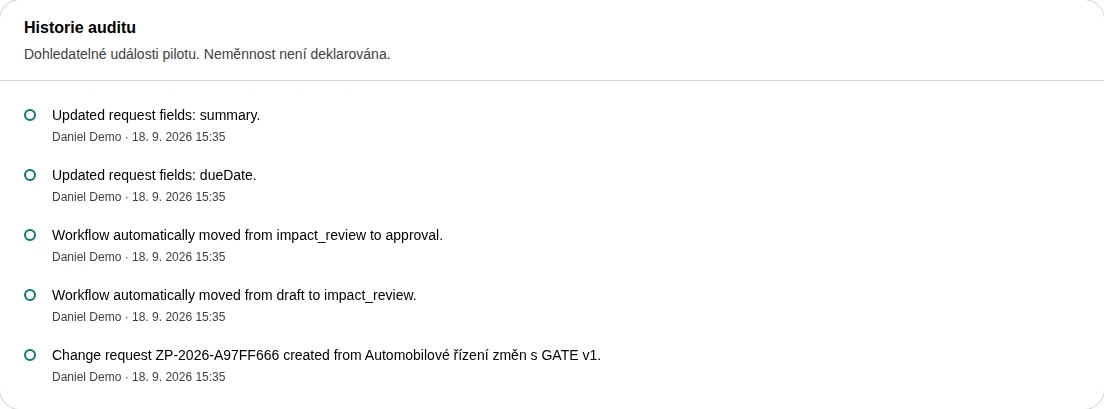 Enlarge screenshot
History records the changes and their author.Captured from a local synthetic demo in September 2026. All example data is fictional. Screenshots show the Czech interface.
Enlarge screenshotWhat to know
What this form changes
The form changes request details. It does not replace the copied workflow version, task answers, assignments or individual task dates. Edit those values in the task detail instead. The custom number must remain unique within the organization.
Missing Edit request action
Check your edit request permission and, for internal changes, access to internal content. Regular users cannot edit released, closed or rejected requests. SuperAdmin corrections are recorded in audit history.
Save errors or invalid values
Stay in the form and correct required fields, the date format or a duplicate custom number. If connectivity fails, restore it and use Retry. Leave only after All changes saved appears; an unsaved changes warning means some edits have not yet been acknowledged.