Your workspace
Notifications
Follow assignments, handovers, deadline reminders, and overdue task notifications.
- Who can use it
- Signed-in users.
- Where to find it
- Bell icon in the header or Notifications.
Step by step
Open the bell icon and review unread items.
Select a notification to open its linked request or task and mark it as read.
Use Mark all as read when you have reviewed the list.
Open Profile to adjust assignment, handover, and deadline notification preferences.
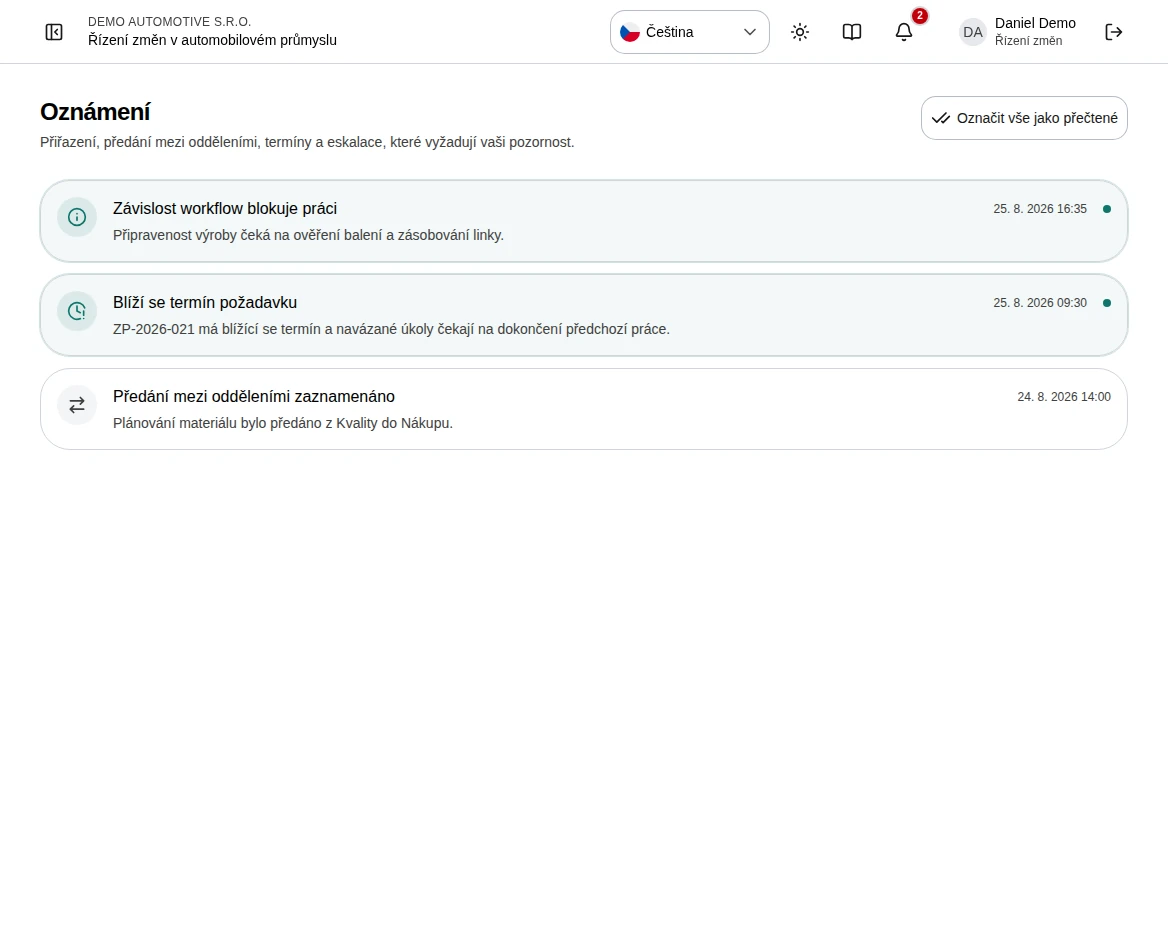 Enlarge screenshot
What to know
Read state
Marking a notification read clears its unread state; it does not complete the underlying work. If updating read state fails, the destination can still be opened.
Overdue task notifications
A configured superior receives an in-app notification after an assigned task passes its overdue threshold. It links to the change.