Getting started
Sign in and navigate
Access your company workspace and find the main navigation, language, and account controls.
- Who can use it
- Anyone with an active provisioned account.
- Where to find it
- The sign-in page, then the application header.
Step by step
Enter your email and password and select Sign in.
Use the left navigation for the overview, change requests, and administration pages available to your role.
On a narrow screen, open the navigation menu. On desktop, collapse or expand the sidebar using its header control.
Use the header to change language or appearance, open notifications, visit your profile, or sign out.
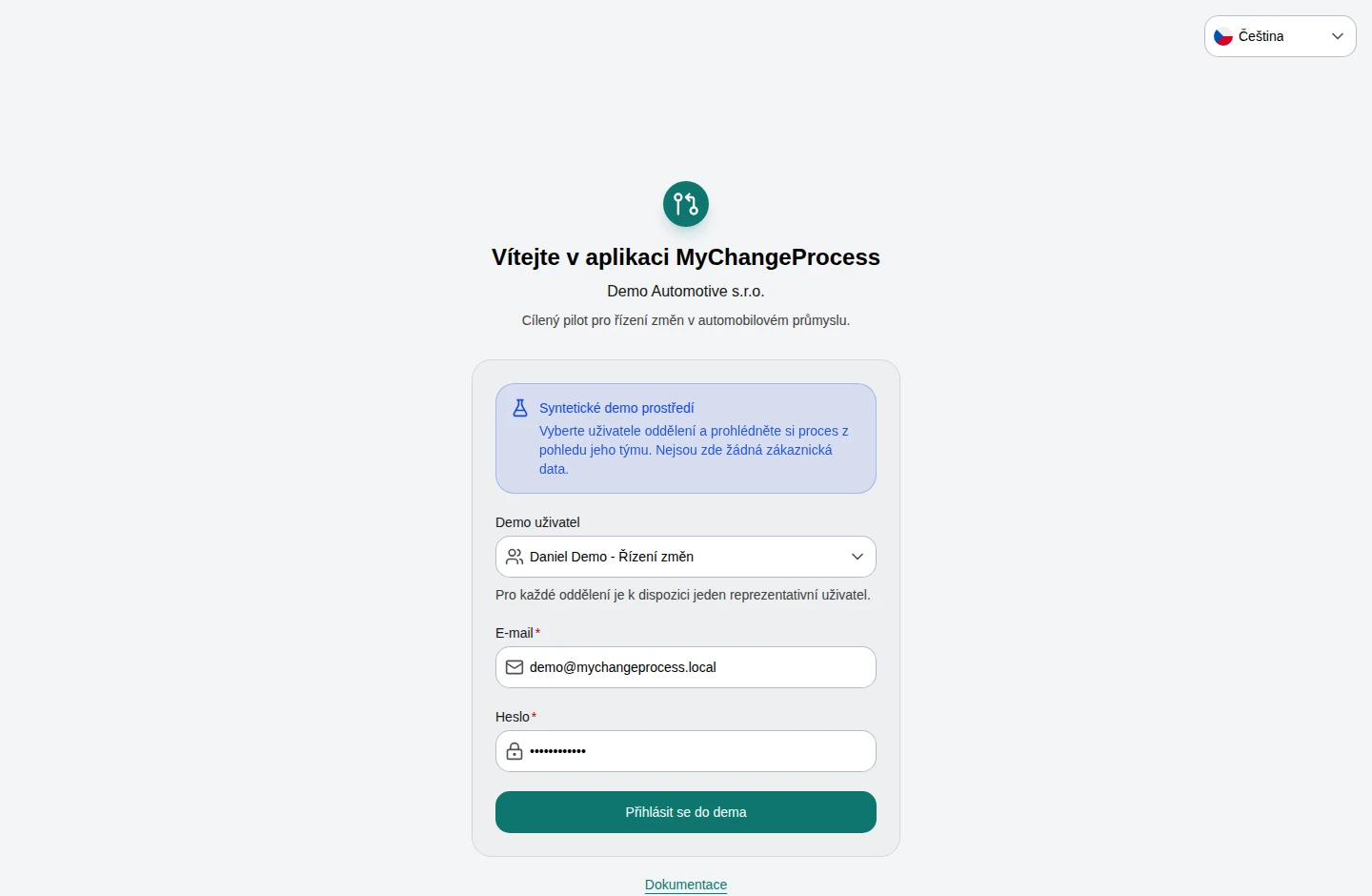 Enlarge screenshot
What to know
Company accounts
The normal sign-in form starts empty. Account creation and access changes are handled by an administrator in Users and departments.
Interface and content languages
The interface supports Czech and English. Organizations can additionally maintain translated workflow content. Available content languages come from company settings.