Managing changes
Create a request step by step
Create a change request using a completed example, from opening the form and choosing a workflow to setting deadlines and checking the new case.
- Who can use it
- Permission to create requests, an available active owner and at least one published workflow template. Internal changes also require permission to read and write internal content.
- Where to find it
- Change requests > New change request.
Step by step
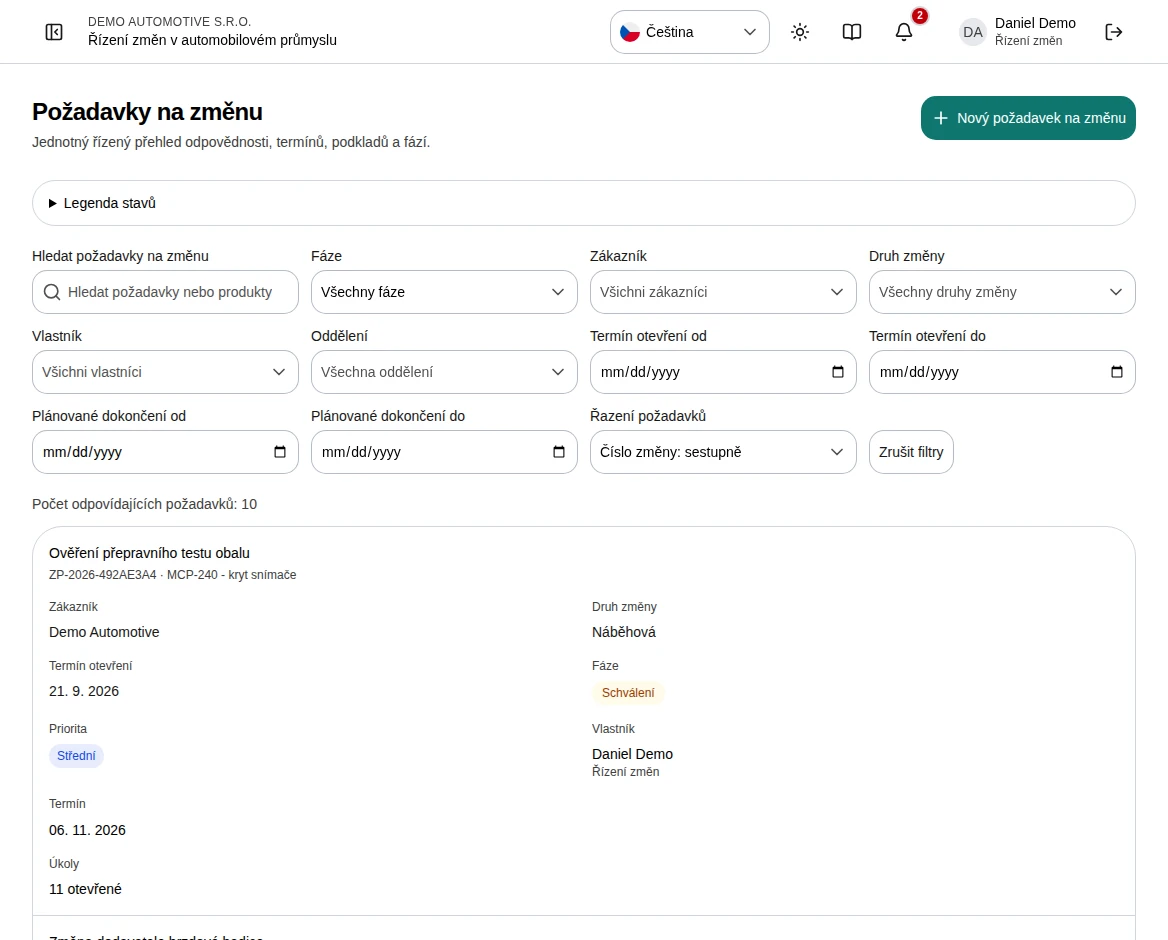
Open Change requests and select New change request. This example creates a packaging change for part MCP-240, titled “Změna balení dílu MCP-240” in the Czech screenshots. Replace all names, references and dates with your own case details.
 Enlarge screenshot
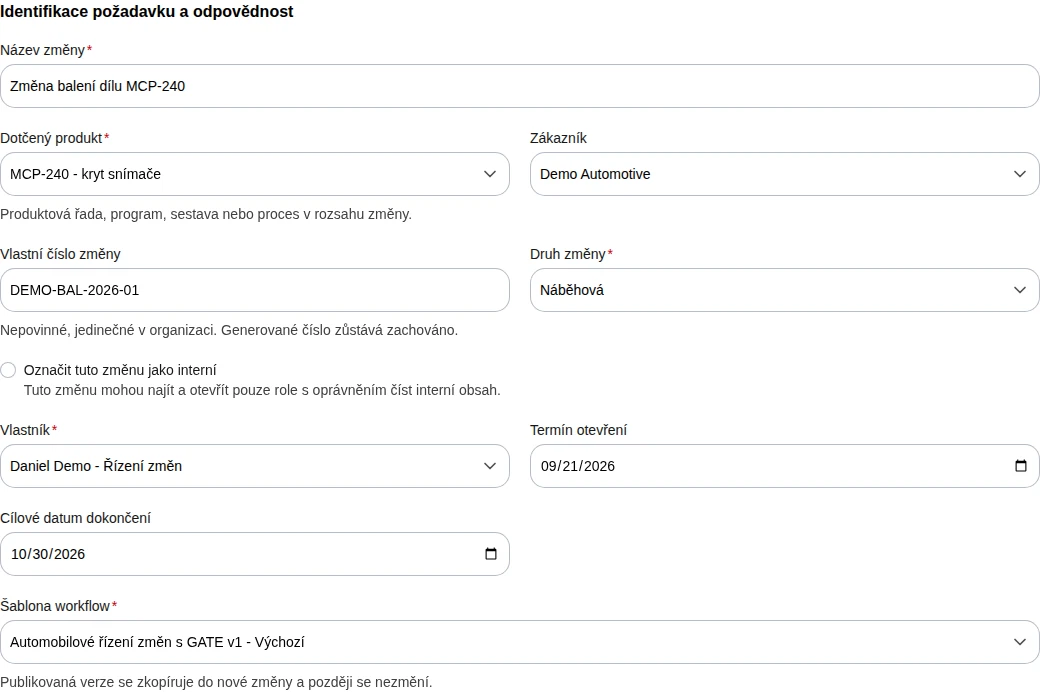
Start from the request list.Captured from a local synthetic demo in September 2026. All example data is fictional. Screenshots show the Czech interface. Enter the Change title “Změna balení dílu MCP-240” and Affected product “MCP-240 - kryt snímače”. Optionally enter Customer “Demo Automotive” and Custom change number “DEMO-BAL-2026-01”. The title needs 3 to 200 characters and the product 2 to 300. The custom number must be unique within your organization.
Choose an Owner, Daniel Demo in this example, and Change type, here Ramp-up. Optionally set the Opening date to 21 September 2026 and Target completion date to 30 October 2026. Check the published Workflow template, here “Automotive change management with GATE v1”. Only mark a change as internal when access should be restricted; this example leaves it off.
 Enlarge screenshot
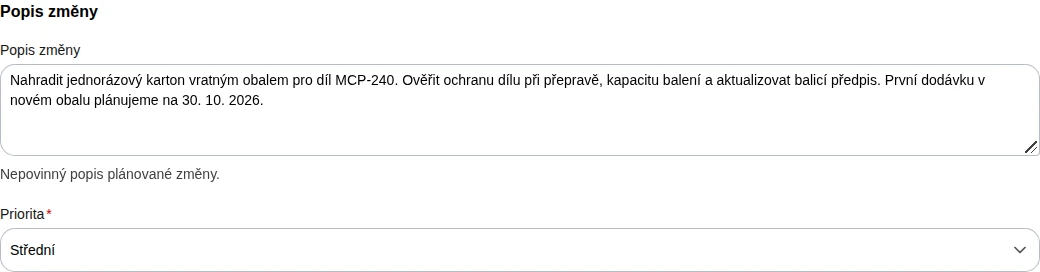
The values from steps 2 and 3 before creation.Captured from a local synthetic demo in September 2026. All example data is fictional. Screenshots show the Czech interface. Describe the change and what needs to be checked in Change description. Example: “Replace disposable cardboard with returnable packaging for part MCP-240. Verify protection during transport and packaging capacity, and update the packaging instruction. The first delivery in the new packaging is planned for 30 October 2026.” Set Priority, here Medium.
 Enlarge screenshot
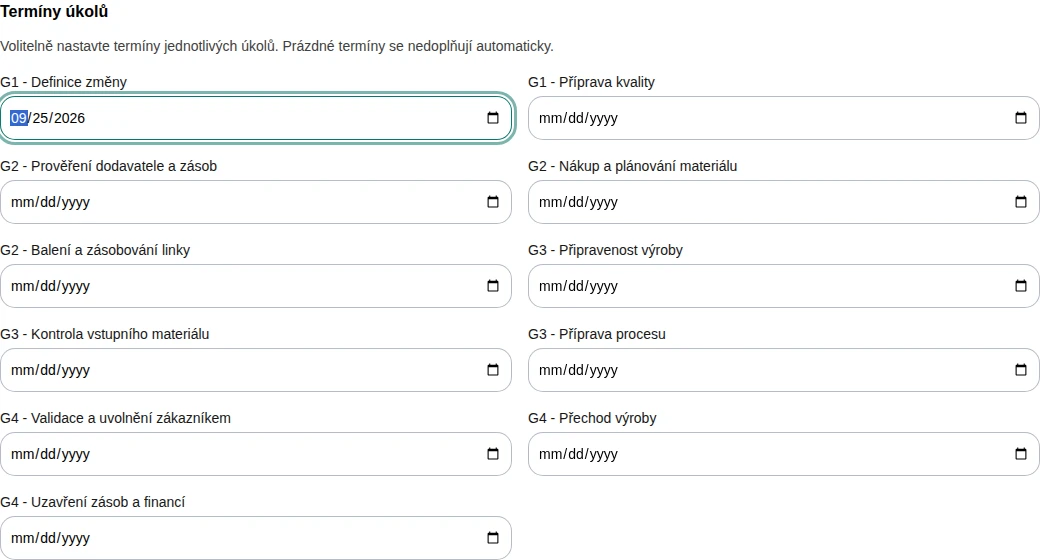
Describe the change, required checks and expected outcome.Captured from a local synthetic demo in September 2026. All example data is fictional. Screenshots show the Czech interface. Review Task due dates from the selected template. Set G1 - Change definition to 25 September 2026 in this example and leave the others blank for now. These dates are optional and are not calculated automatically. If you change the template, enter the task dates again.
 Enlarge screenshot
Only the first task has a deadline; the other dates are optional.Captured from a local synthetic demo in September 2026. All example data is fictional. Screenshots show the Czech interface. Review the form and select Create request at the bottom. This form does not save automatically before creation. If an error appears, correct the marked field or duplicate custom number and retry creation.
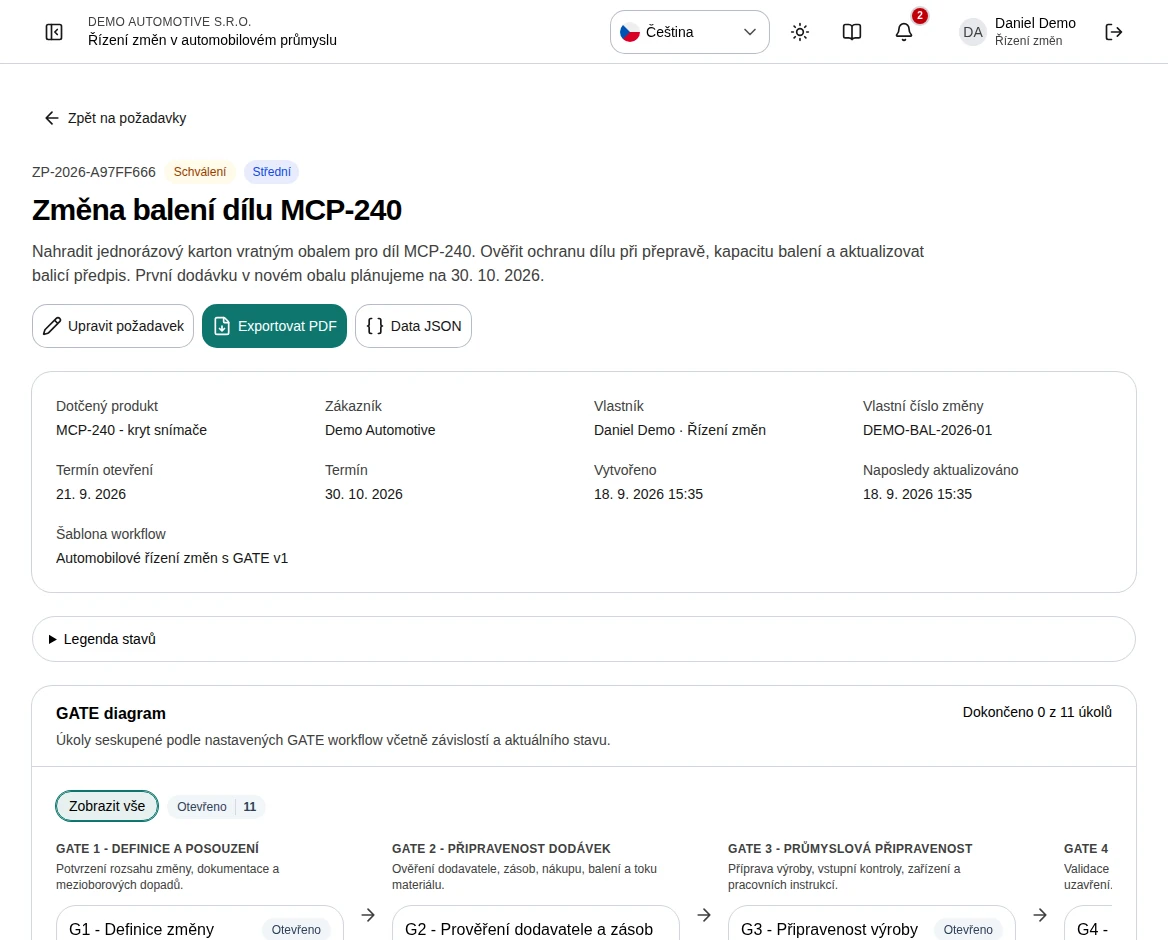
Successful creation opens the request detail. Check the title, owner, target date and tasks copied from the workflow. The application also assigns a generated request number. To change these details later, follow the related Edit a request step by step guide.
 Enlarge screenshot
Creation opens the specific request.Captured from a local synthetic demo in September 2026. All example data is fictional. Screenshots show the Czech interface.
Enlarge screenshotWhat to know
What to prepare
The title, affected product, owner, change type, priority and workflow are required. Change type, priority and workflow may already have default values. Customer, custom number, description and dates are optional. The custom number allows up to 120 characters, customer 300 and description 4,000.
Workflow and later edits
The published workflow version is copied into the case on creation. Editing request details later does not replace that copy. Changing the target date does not recalculate individual task deadlines either.
If creation is unavailable or fails
If the form is missing, check your create permission. If no published template is available, ask a SuperAdmin to publish a workflow. Use Retry if people or templates fail to load. For a duplicate custom number, choose another number or clear this optional field. Treat creation as complete only after the request detail opens.