Administration
Users and account access
Create accounts and maintain names, roles, departments, and active status.
- Who can use it
- Users with management access, normally SuperAdmin or Admin.
- Where to find it
- Administration > Users and departments.
Step by step
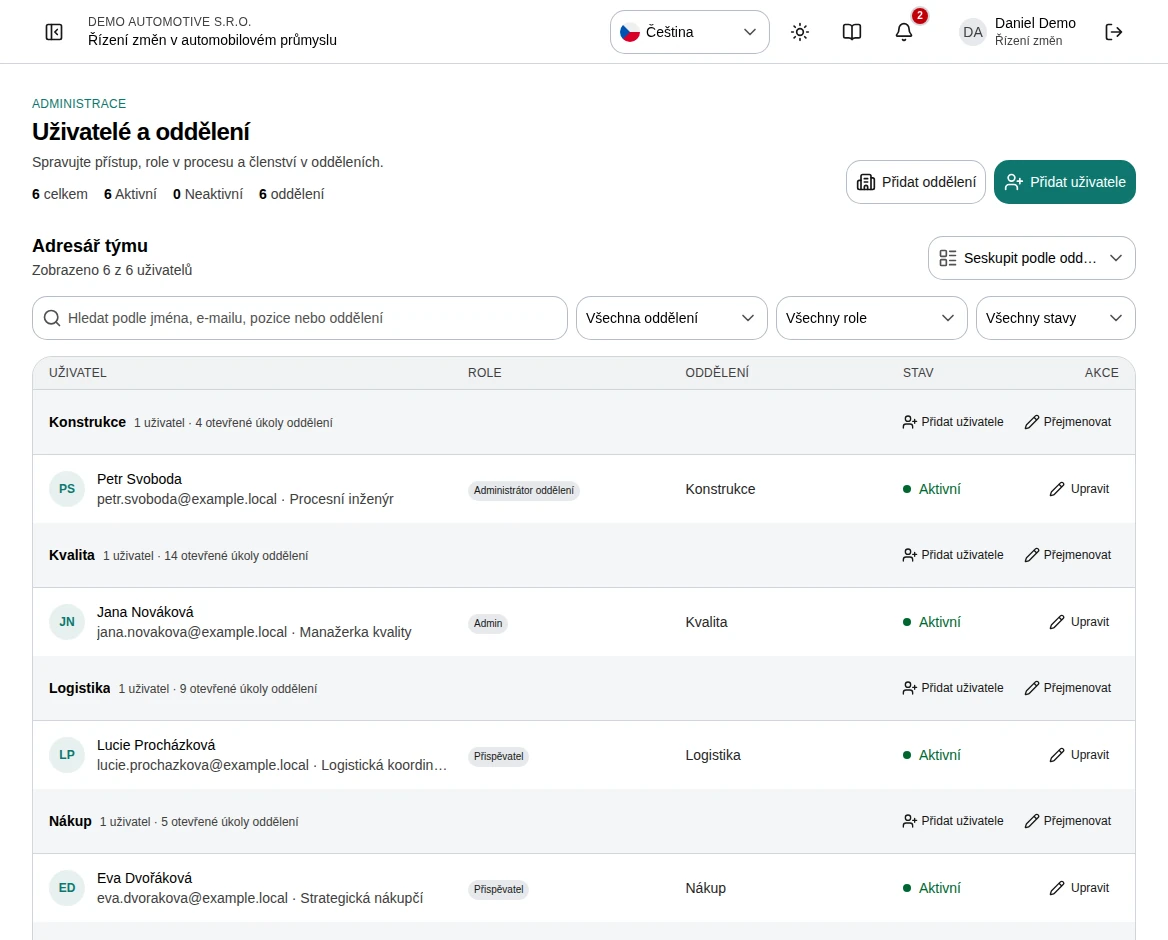
Review the account summary, then search or filter the directory by department, role, and active status.
Choose grouping by department, role, or no grouping to organize the directory.
Choose Add user at the top of the page, or Add user in a department heading to preselect that department. Enter full name, email, job title, role, department, and a temporary password of at least 12 characters. Choose No department for accounts that do not belong to a team, such as administrators.
Create the account and share its temporary password through your approved secure channel.
Open Edit for an existing user to change profile, role, department, or active status. Confirm automatic saving finishes.
To remove an account permanently, open Edit and choose Delete user, then confirm. You cannot delete your own account or the last active SuperAdmin.
SuperAdmin only: to reset a forgotten password, open Edit, enter a new password of at least 12 characters under New password, and choose Set password. Share it through your approved secure channel. Sessions already signed in stay active, so deactivate the account first if it may be compromised.
 Enlarge screenshot
What to know
Access changes
Role changes affect available operations. Deactivating an account removes its active access and can be undone.
Deleting a user
Deleting removes the account from the directory and cannot be undone. An account without any history is erased completely. If the person appears in change history, approvals, or audit records, their name stays on those records, while their email, password, contact details, role, department, notifications, and notification rules are removed. The email address can then be used for a new account.
Department Admin
Despite its name, the built-in Department Admin role has fixed read-only access. It is not equivalent to Admin. Use the Roles and permissions screen to understand each role.