Getting started
Your first change process
Understand how requests, workflow templates, departments, and tasks fit together.
- Who can use it
- All users; actions depend on role permissions.
- Where to find it
- Start on the overview after signing in.
Step by step
Sign in with the company account provided by your administrator. Check your department and role in Profile.
Open Change requests to browse existing work. If you can create requests, choose New change request and select a published workflow.
Open a request, read its summary, and follow the task chain. Open a task to see instructions, required answers, and ownership.
Complete your work, wait for saved responses, and update the task status. Use handover when another person or department must take over.
Check notifications and the overview for the next action. Use the request audit history to review recorded changes.
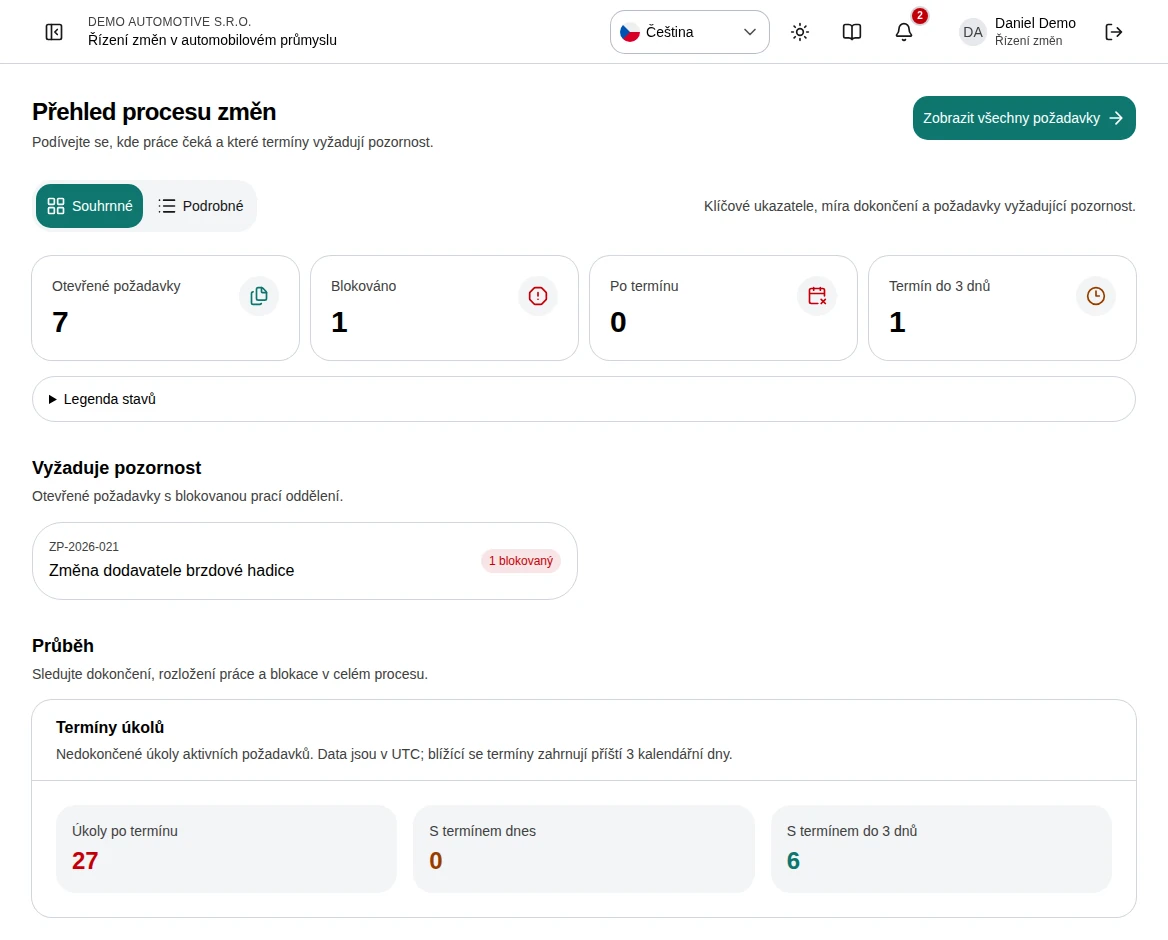 Enlarge screenshot
What to know
Request and template
A change request is a single case with its own owner, scope, dates, and tasks. A published workflow is a reusable process definition. Its version is copied into each new case; later template changes do not rewrite existing cases.
Departments and permissions
Departments own work. Roles control what users can view and change. The menu and forms reflect your access, so two users can see different controls on the same request.