Administration
Notification rules
Choose the superior notified when an assigned task stays overdue.
- Who can use it
- Users with management access.
- Where to find it
- Administration > Notification rules.
Step by step
Review active rules, active users, and configuration issues.
Enable notification for the intended user.
Choose the superior who should receive the notification.
Enter a delay from 0 to 365 days and wait for valid settings to save.
Correct any enabled rule missing its superior or delay.
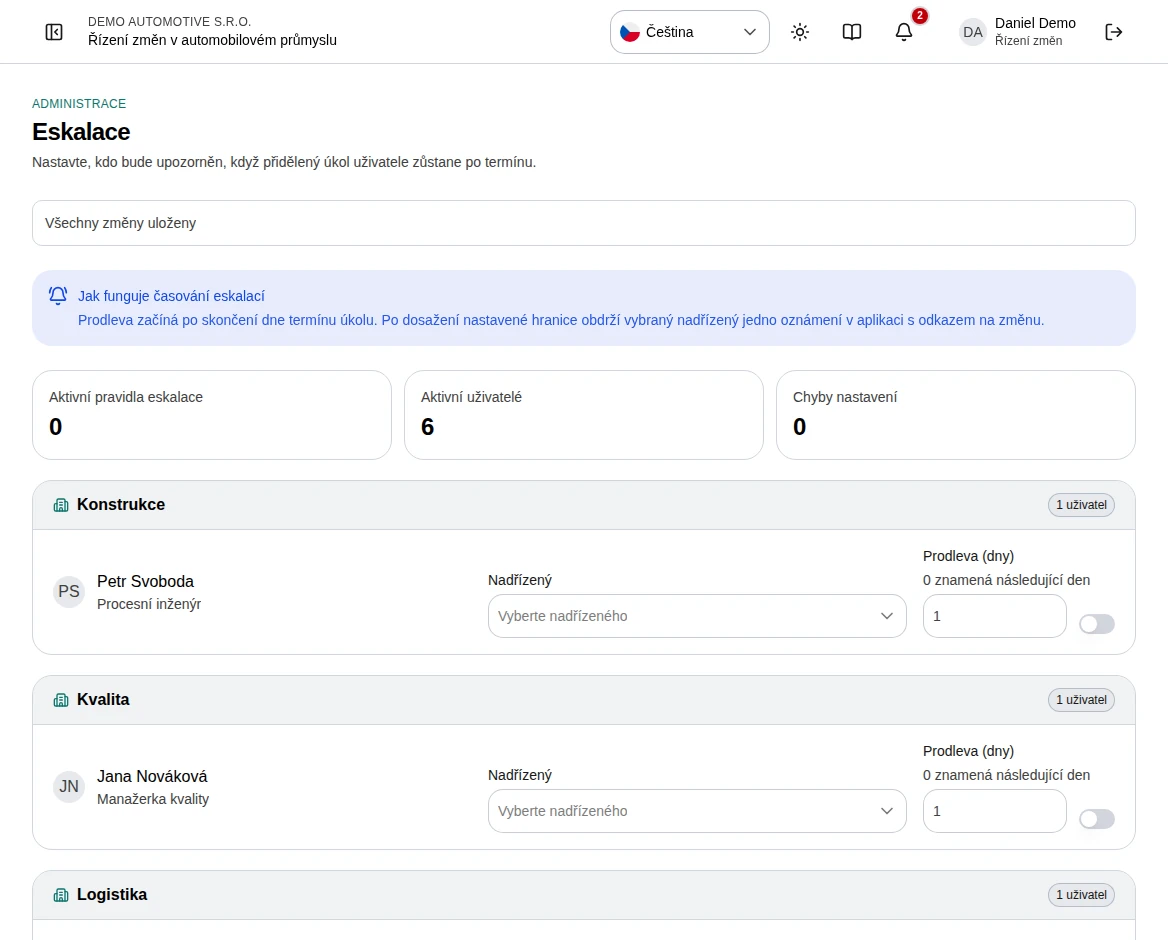 Enlarge screenshot
What to know
Timing
The delay starts after the task due day ends. Zero means the next day. When the threshold is reached, the selected superior receives one in-app notification linking to the change.
Eligibility
The rule concerns overdue tasks assigned to a person. A task without a due date or without an individual assignee cannot be treated as that person’s overdue assigned work.