Managing changes
Export a case as PDF or JSON
Take a readable report or structured data snapshot from an accessible request.
- Who can use it
- Users authorized to read the request.
- Where to find it
- Request header > Export PDF or JSON data.
Step by step
Open the correct request and check its reference and current contents.
Select the intended interface and content language before exporting a PDF.
Choose Export PDF for a readable report or JSON data for structured case data.
Open the downloaded result and verify that it matches the intended case before sharing it.
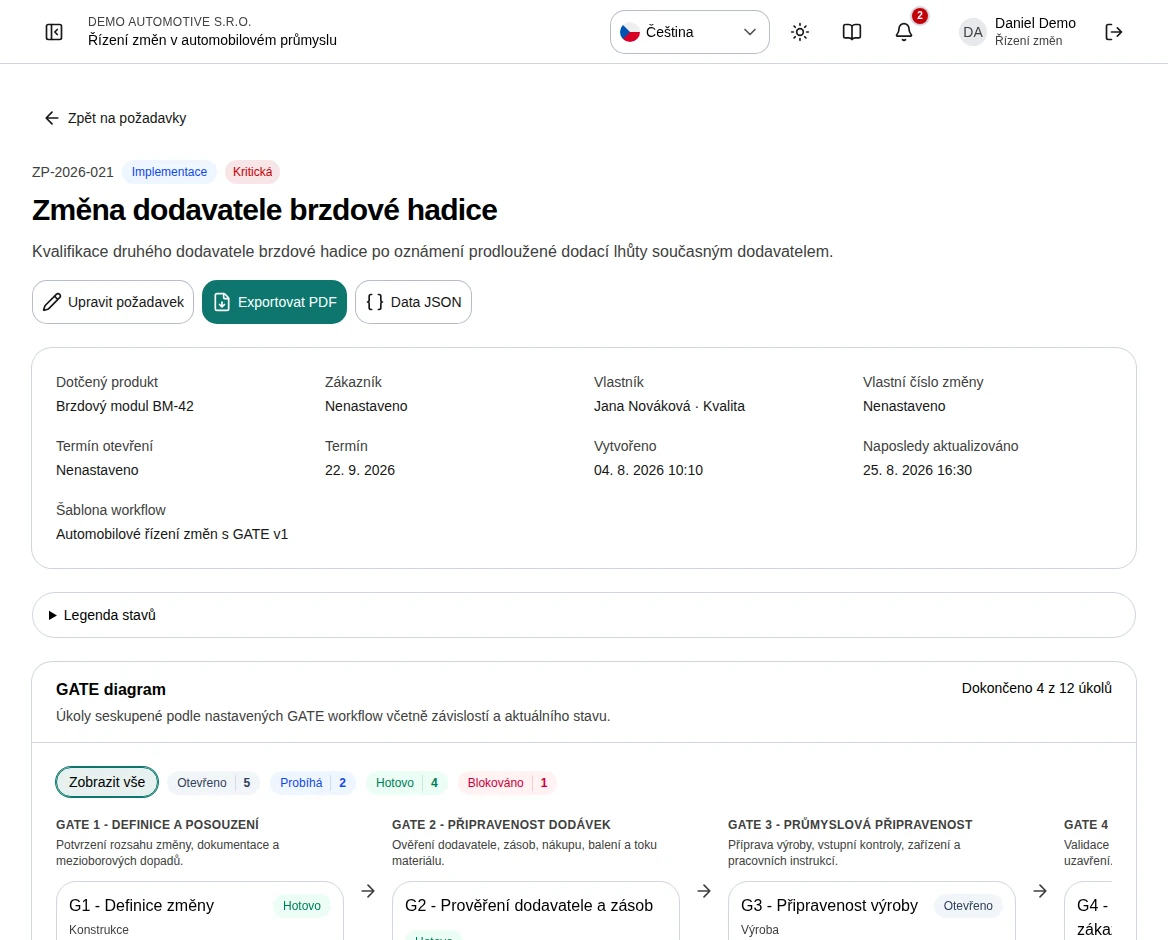 Enlarge screenshot
What to know
Language
The PDF export receives both the selected interface locale and workflow content locale. JSON is a data export rather than a translated presentation.
Point-in-time copy
An export is a copy of the accessible case at export time. It does not remain synchronized with later changes and does not replace the live audit history.