Managing changes
Find and filter requests
Locate the right change by reference, product, customer, owner, department, or dates.
- Who can use it
- Users with read access; internal changes require internal read permission.
- Where to find it
- Change requests in the main navigation.
Step by step
Enter a reference, title, or product in Search change requests.
Narrow the list by stage, customer, or affected product.
Open More filters for change type, owner, department, opening-date, and planned-completion ranges. The button shows how many of these filters are active.
Choose a sort order above the results and move through pages. Open the request title to see its work.
Use Clear filters to return to the full visible list, or New change request to start a case.
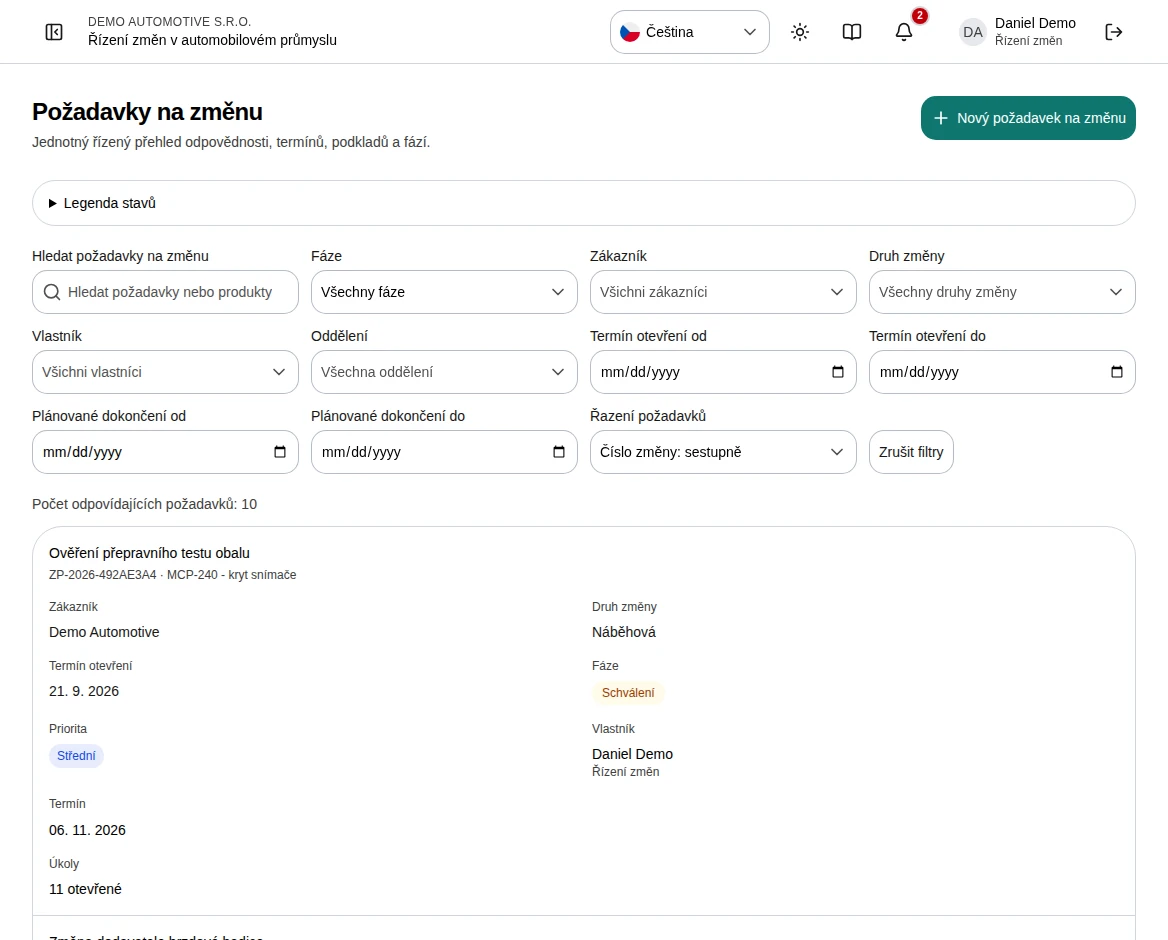 Enlarge screenshot
What to know
Reading a request row
Rows show identity, customer, change type, opening date, stage, priority, owner, due date, and open or blocked task counts. Ramp-up and Hardcut distinguish the requested change type.
Visibility
Internal requests only appear for users with permission to read internal content. An empty list can be caused by filters or your access, not necessarily the absence of requests.