Managing changes
The request workspace
Read the case summary, follow the task graph, and inspect decisions and recorded history.
- Who can use it
- Users who can read the request.
- Where to find it
- Open a request from the list, overview, or notification.
Step by step
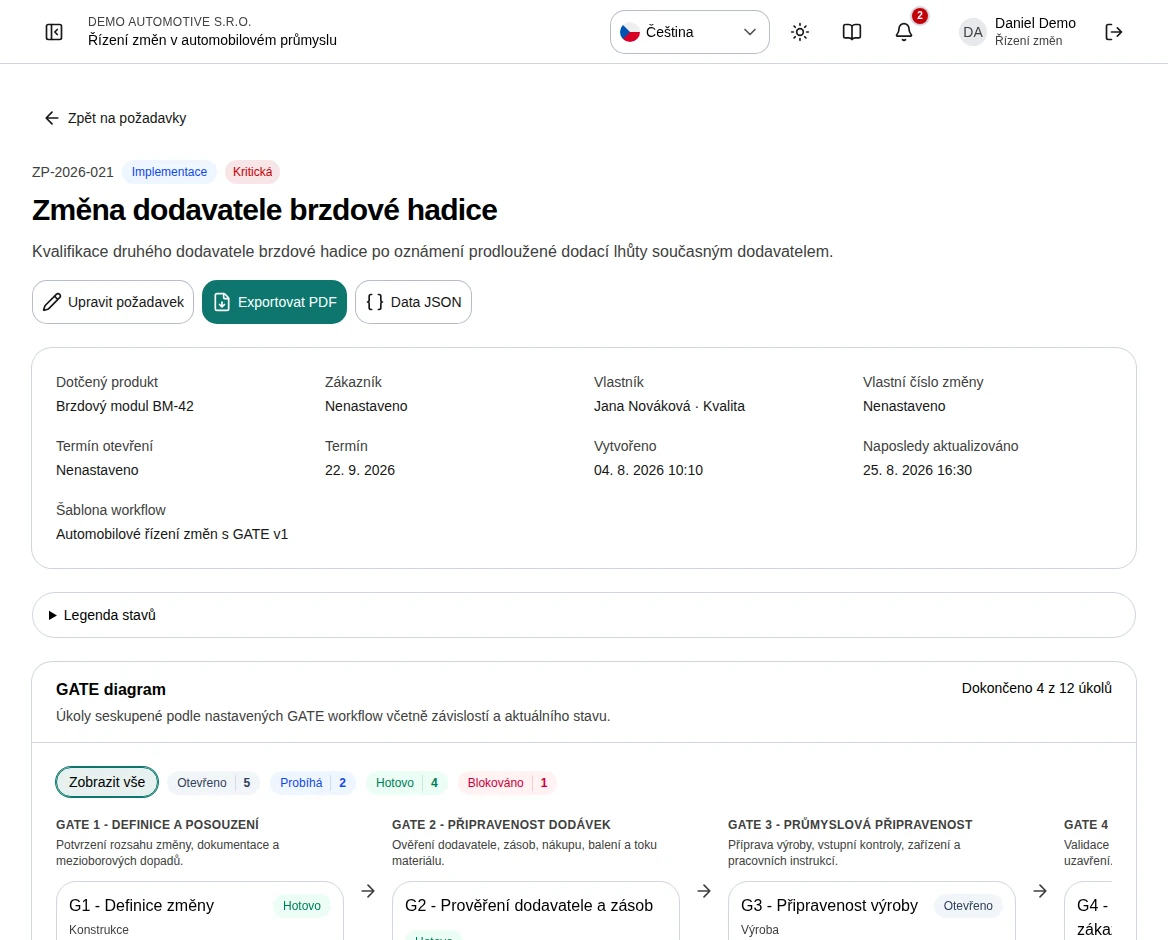
Check the reference, stage, priority, owner, affected product, customer, and dates in the summary.
Read the workflow name and version to understand which process was copied into this case.
Follow the task chain and select a task card to open its working panel.
Use the implementation work filters to focus on a status, department, or assignee.
Review approval decisions and Audit history below the work area. Use the header actions for editing or exporting.
 Enlarge screenshot
What to know
Task chain
Named GATEs group tasks when the template enables them. Otherwise, the graph derives phases from dependencies. Unlinked tasks can be completed independently; a task waiting for predecessors is not the same as one explicitly marked blocked.
Current screen structure
The workspace shows the task chain, execution work, approvals and audit history on one page. Scroll below tasks and approvals to reach Audit history.